Search Engine Settings
Your Home page is built so let's switch gears and get your site ready for the all important Search Engines. First, click the Pages icon and then click the SEO Settings tab.
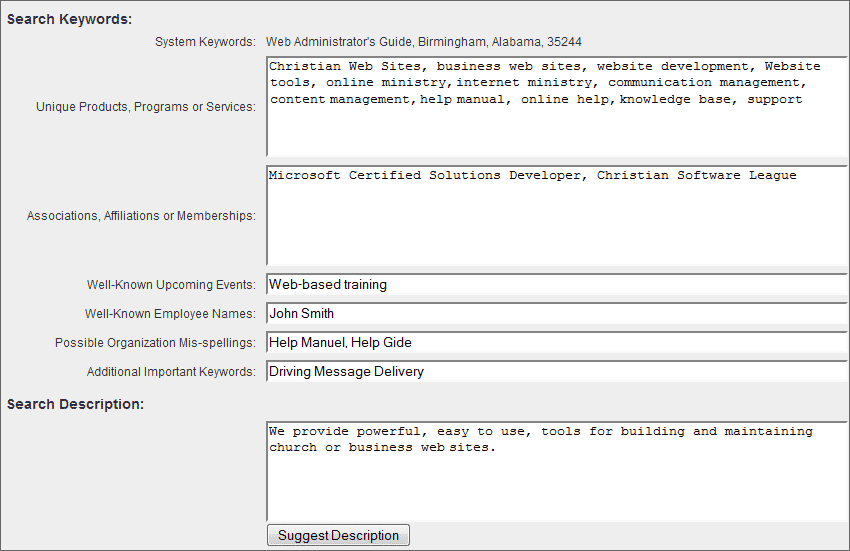
Search Keywords
This is the information some search engines will use to match your organization with the search engine criteria entered by search engine users.
- SYSTEM KEYWORDS: Basic organization information we are automatically generating for you.
- UNIQUE PRODUCTS, PROGRAMS OR SERVICES: Enter keywords relating to products, programs or services unique to your organization.
- ASSOCIATIONS, AFFILIATIONS OR MEMBERSHIPS: Enter any associations, affiliations or memberships your organization has.
- WELL-KNOWN UPCOMING EVENTS: Enter upcoming events that are known to be associated with your organization.
- WELL-KNOWN EMPLOYEE NAMES: Enter employee names that are known to be associated with your organization.
- POSSIBLE ORGANIZATION MIS-SPELLINGS: Enter possible alternate spellings a user may enter for your organization name.
- ADDITIONAL IMPORTANT KEYWORDS: Add any additional important keywords that do not fall within one of the previous fields.
Search Description
This is the information most people will see in the search engine results when your organization matches one of the keywords they entered.
- Enter or update your Search Description using the text area field provided.
- Or, click the Suggest Description tab and we'll suggest a description for you based on your keywords. Please note this is only a suggestion and you will need to edit the information accordingly before saving.
- Click the Save
 icon in the upper right corner of your screen to save your Search Engine Settings.
- Click the Exit
 icon in the upper right corner of your screen to exit to your Control Panel.